Shizuku App: Unlock 120 & 160 FPS Without Root
Getting a permission error in 120 FPS Unlocker? On Android 11 and newer, apps aren’t allowed to open game data folders on their own. The free Shizuku app fixes this without root. Set it up once in about 5 minutes, and 120 FPS Unlocker can apply FPS and graphics settings to BGMI and PUBG Mobile.
What is the Shizuku app?
Shizuku is a free, open-source Android app that acts as a bridge between normal apps and Android’s system services. It lets apps like 120 FPS Unlocker use the same permissions as ADB (Android Debug Bridge), right on your phone. You don’t need root or a computer.
Why does 120 FPS Unlocker need Shizuku?
To unlock 90 FPS or 120 FPS, 120 FPS Unlocker has to change a settings file inside the game’s data folder. Since Android 11, apps can’t write to that folder directly, so you get a permission error. Shizuku gives 120 FPS Unlocker the access it needs, safely and only when you allow it.
Download Shizuku
Free on Google Play. Use version 13.5.4 or newer.
Before you start
- Connect to Wi-Fi. Wireless debugging only works on Wi-Fi. If you don’t have Wi-Fi, turn on a hotspot on another phone and connect to it. You don’t need internet for this.
- Install Shizuku from the button above.
- You only need to pair one time. After that, Shizuku remembers your phone.
How to set up Shizuku (step by step)
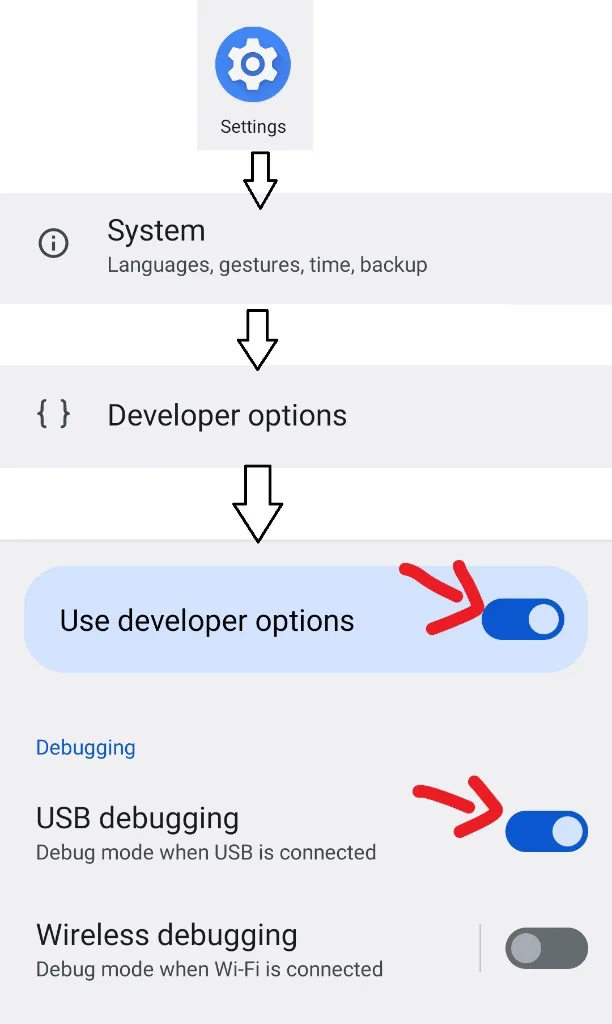
Turn on Developer options
- Open Settings on your phone.
- Tap About phone.
- Tap Build number 7 times until it says you are a developer.
- Go back. You’ll now see Developer options (often under System).
- Open it, then turn on Use developer options and USB debugging.
Open Wireless debugging
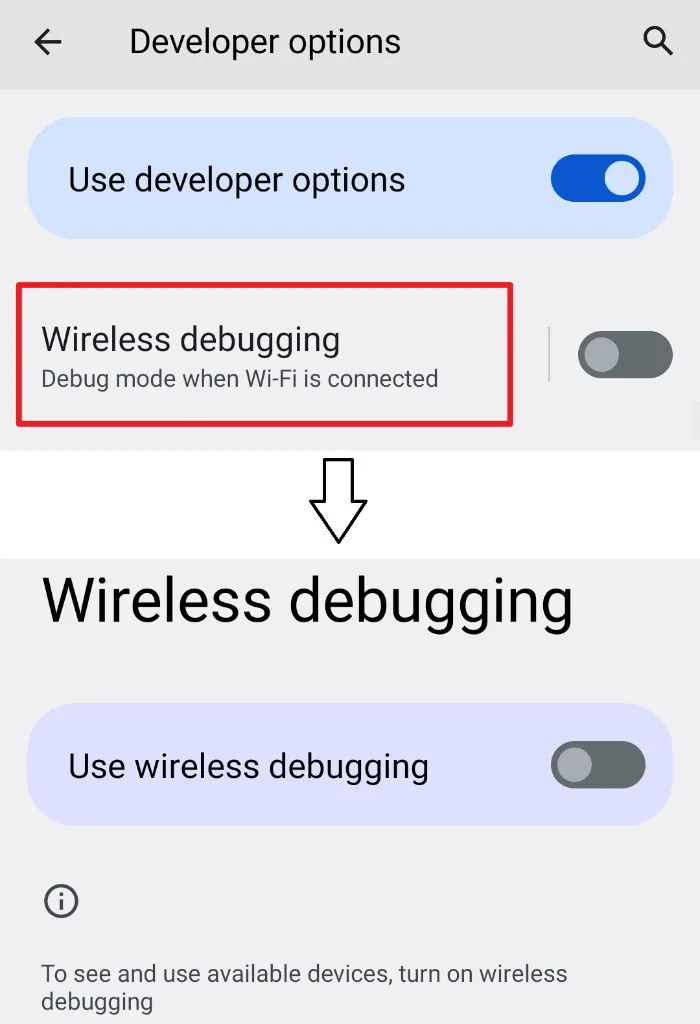
- Open Developer options.
- Make sure Use developer options is ON.
- Scroll to Wireless debugging and tap the words, not only the switch.
Turn on Wireless debugging
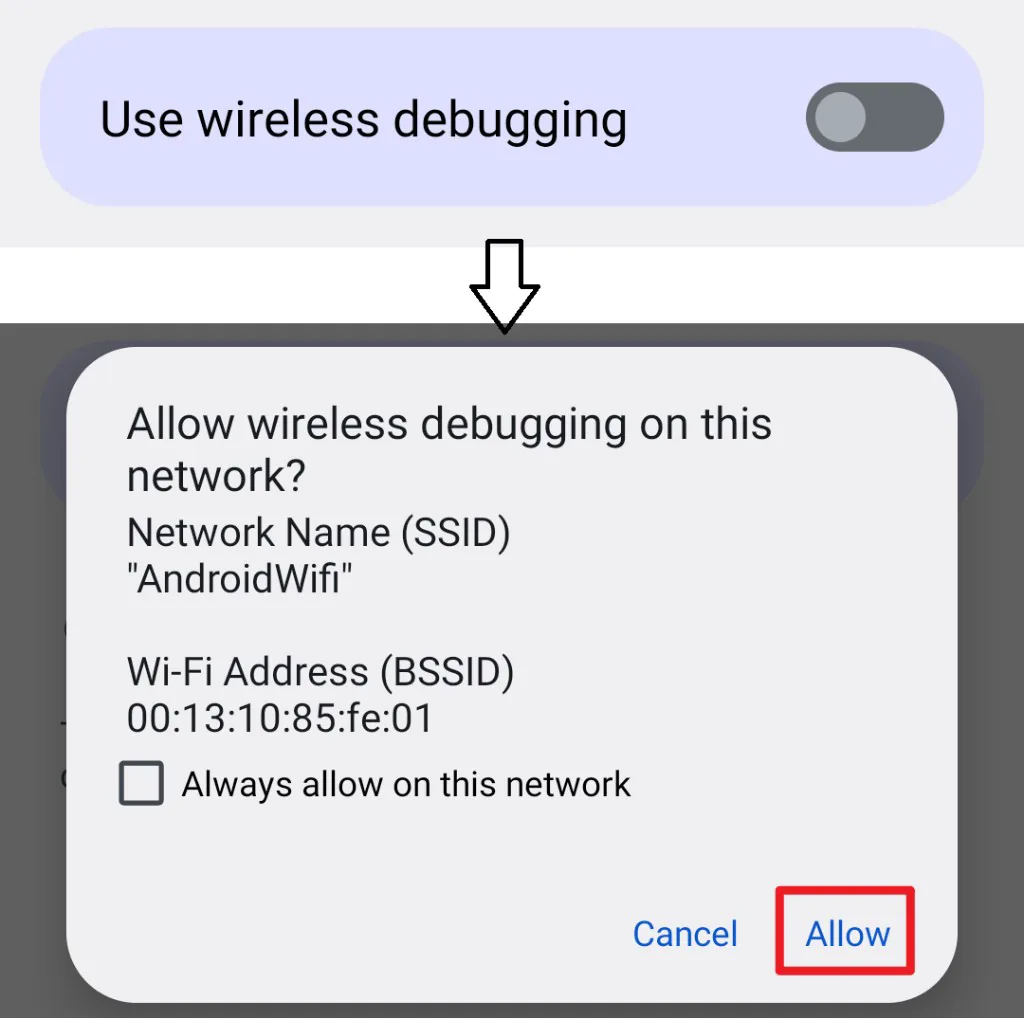
- Turn on Use wireless debugging.
- When it asks, tap Allow.
- Tick Always allow on this network so it doesn’t ask again.
Start pairing in Shizuku
- Open the Shizuku app.
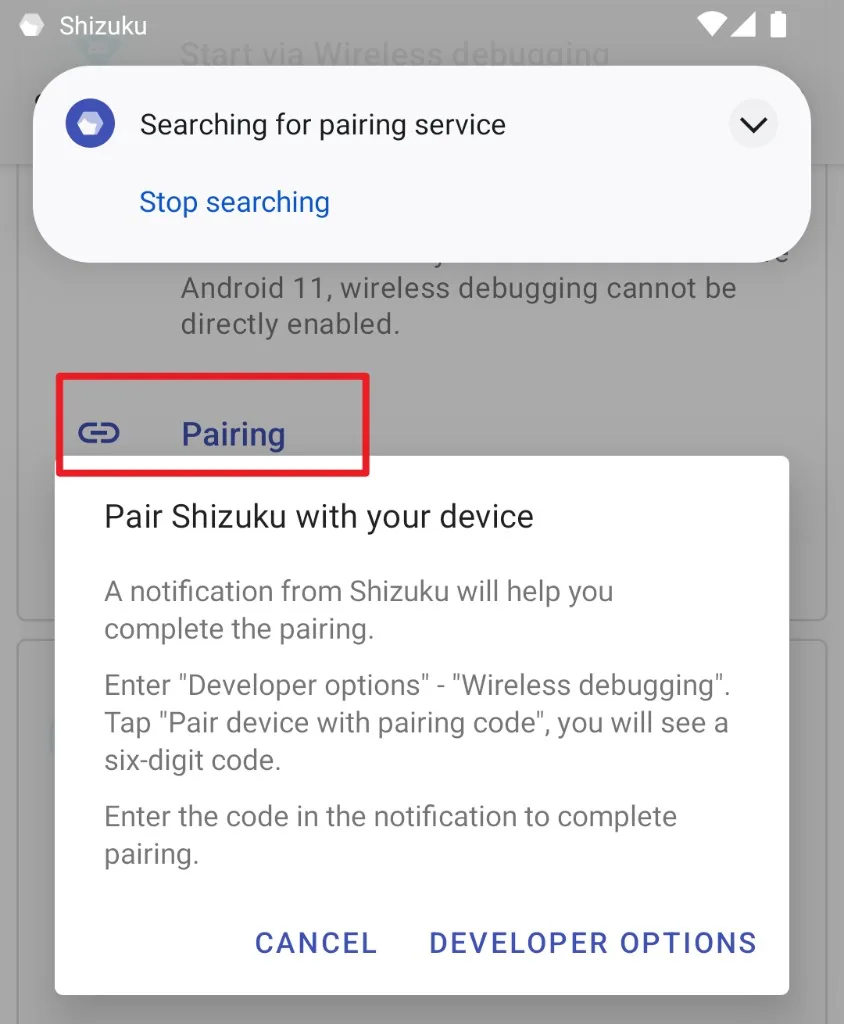
- Under Start via Wireless debugging, tap Pairing.
- Shizuku shows a notification that says Searching for pairing service. Leave it there.
- Tap Developer options in the popup to jump back to settings.
Get the pairing code
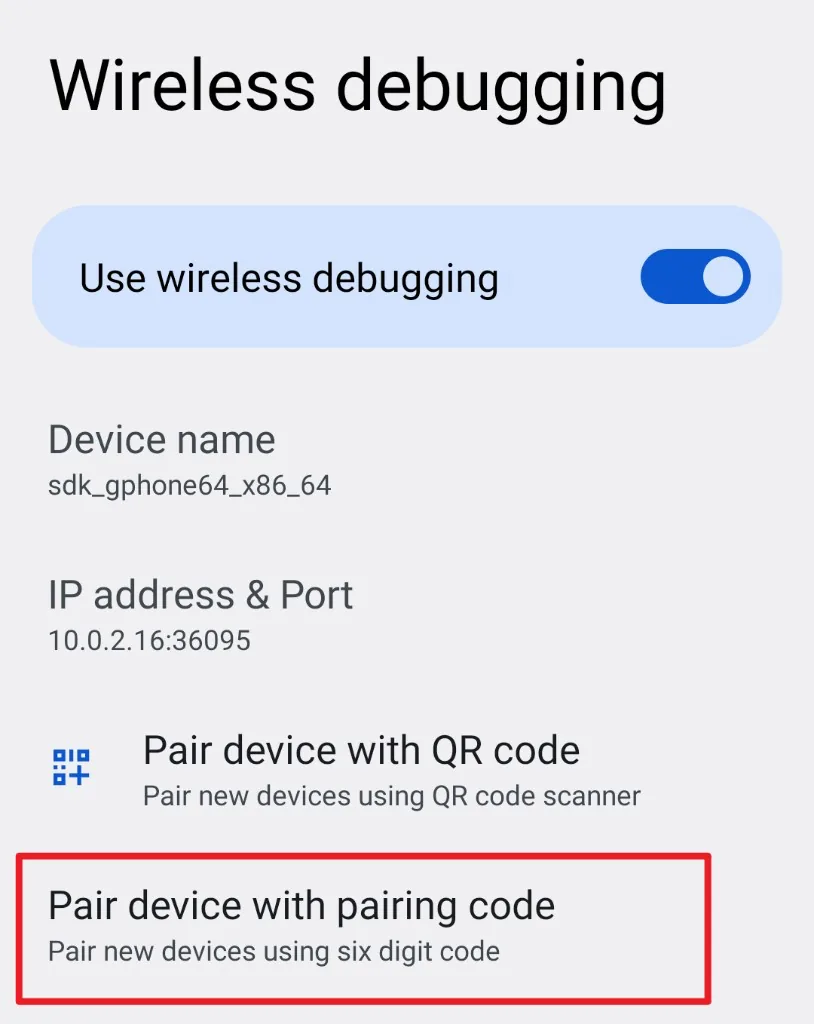
- Go to Wireless debugging and keep it ON.
- Tap Pair device with pairing code. Don’t use the QR code option.
- You’ll see a 6-digit Wi-Fi pairing code. Keep this screen open.
Type the code in Shizuku
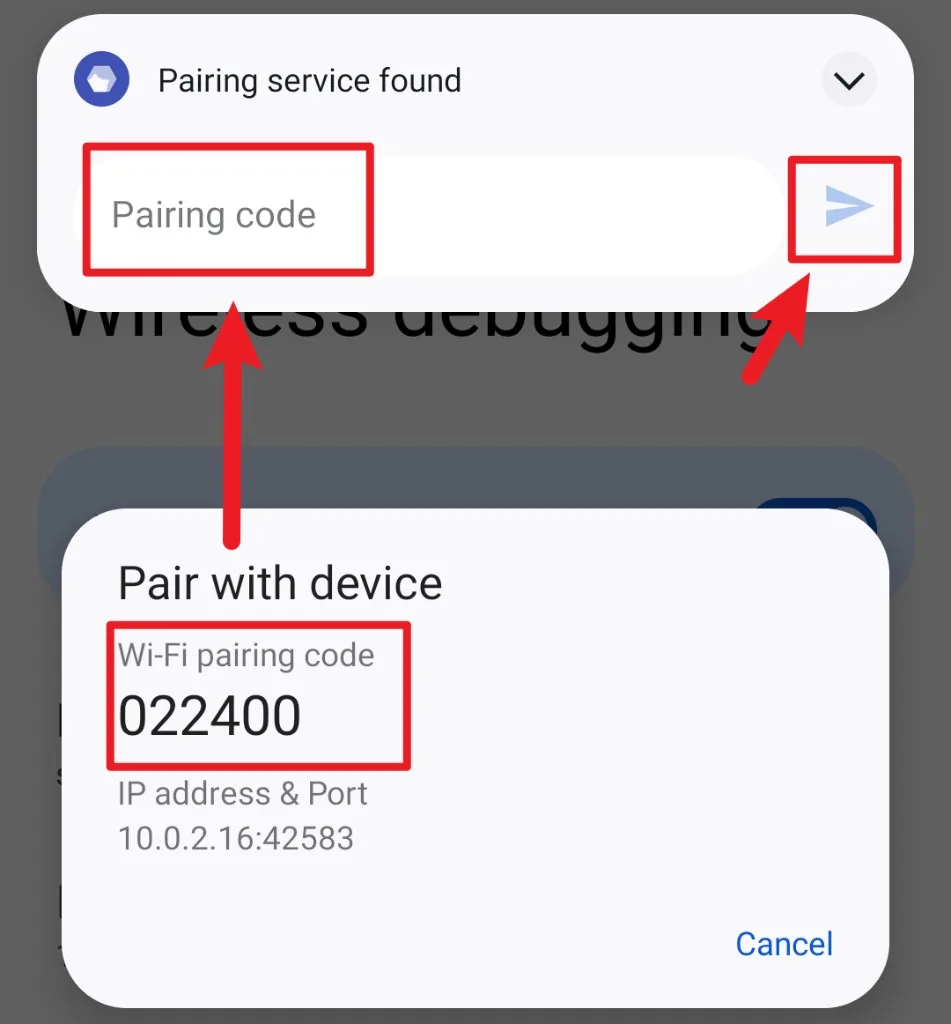
- Pull down your notifications. The Shizuku notification now says Pairing service found.
- Type the 6-digit code into the notification and tap Send.
- Go back to Shizuku and tap Start. It should say Shizuku is running.
- Open 120 FPS Unlocker and tap Allow when it asks for Shizuku permission.
Tip: If Shizuku doesn’t start, turn Wireless debugging OFF and ON again, then tap Start in Shizuku.
Shizuku says you need an extra step?
Some phones block extra permissions. If Shizuku shows “the permission of adb is limited”, change the one setting for your phone below, then open Shizuku and tap Start again.
Xiaomi, POCO, Redmi
In Developer options, turn on USB debugging (Security settings) as well as normal USB debugging.
OPPO, OnePlus
In Developer options, turn OFF Permission monitoring.
Meizu
In Developer options, turn OFF Flyme payment protection.
After you restart your phone: Shizuku stops. You don’t need to pair again. Just connect to Wi-Fi, turn on Wireless debugging, open Shizuku and tap Start.
Is Shizuku safe?
Yes. Shizuku is open source and widely used, and it can only give access to apps you approve. You can remove an app’s access anytime in the Shizuku app. 120 FPS Unlocker only uses it to apply FPS, graphics and boost settings.
Note: Never share your pairing code with anyone, and only pair on a Wi-Fi network you trust.
That’s it!
Shizuku is now running, and 120 FPS Unlocker can unlock 90 FPS and 120 FPS in BGMI and PUBG Mobile without permission errors. Open the app, pick your game region and slide to unlock.